Enhancing the Declaration
After completing the accident declaration process, the accident status changes to “OPENED”, which will be displayed in the declaration list. Click here to learn more about declaration statuses.
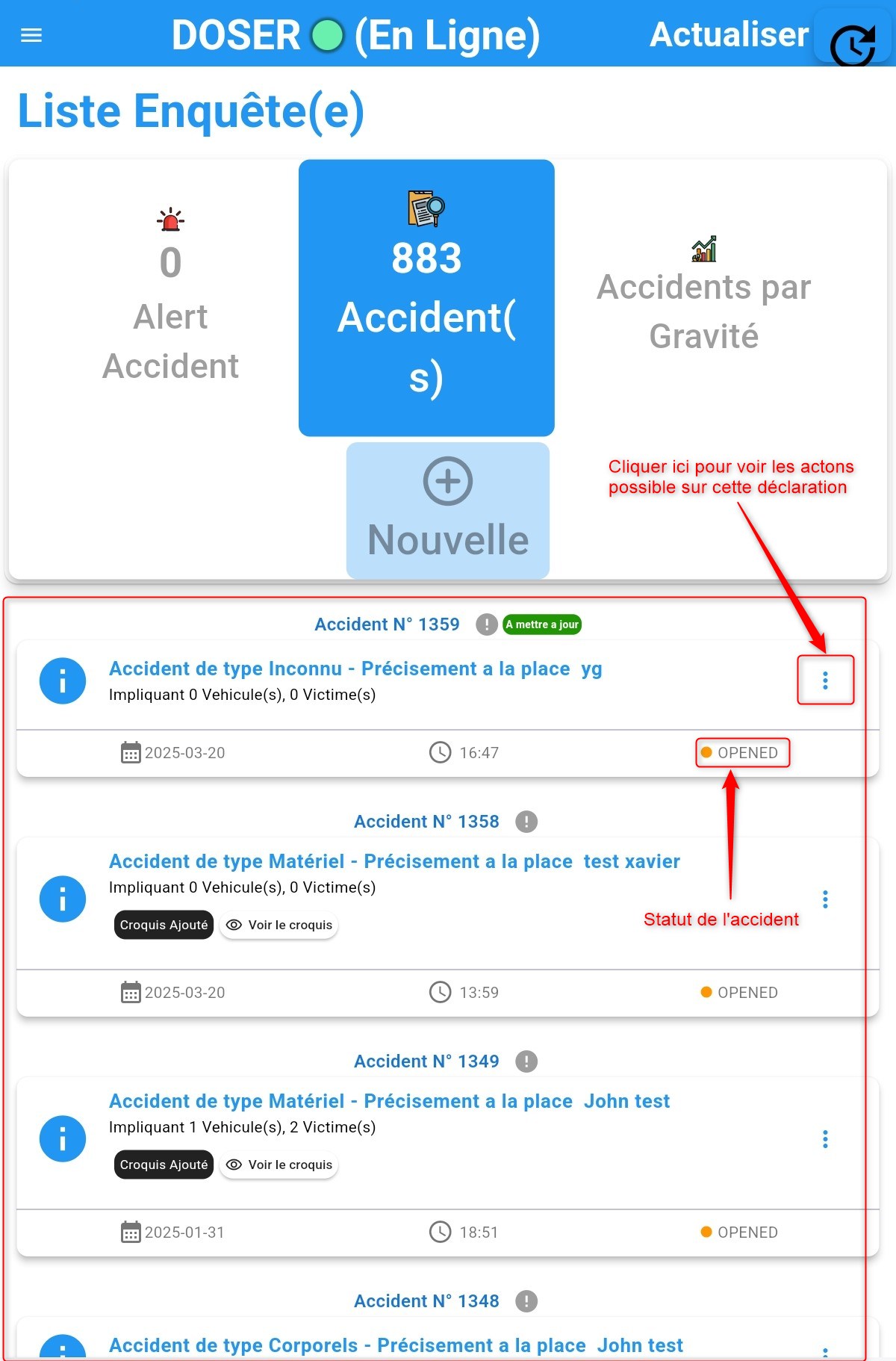
Declaration list.
Once you access the accident list, you will see accidents listed from the most recent to the oldest. To finalize the accident declaration process, click on “the three dots on the right side of the created accident” for the accident you just added, which has the status “OPENED”. You will then see a list of possible actions you can perform. These actions include:
Generate the official report of the declaration
Edit the declaration
Sign the report
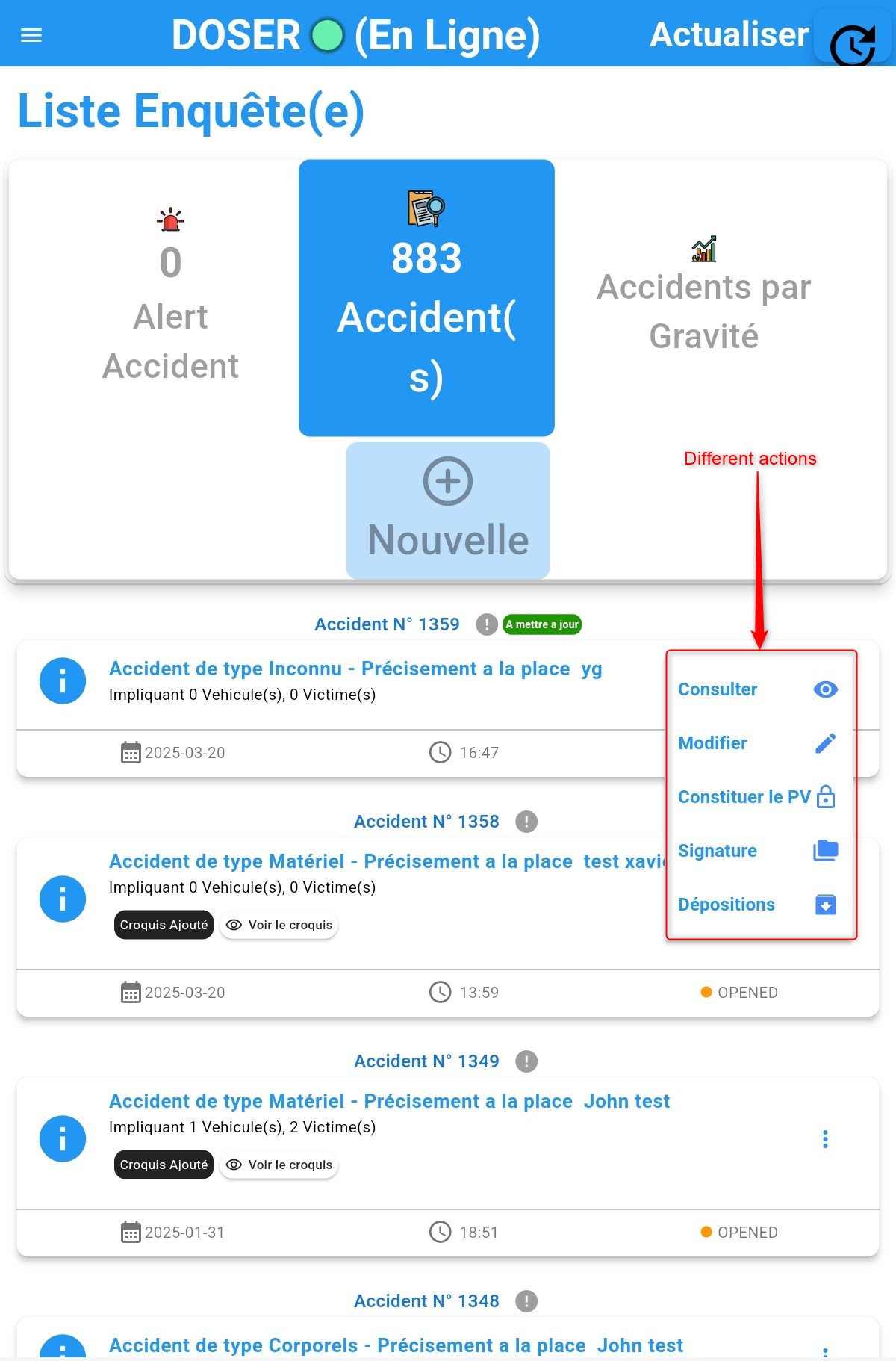
Possible actions on a declaration.
Viewing Declaration Details
To view the details of a declaration, click View in the list of available actions for an accident declaration. Once you click View, as shown here, the following interface will appear:
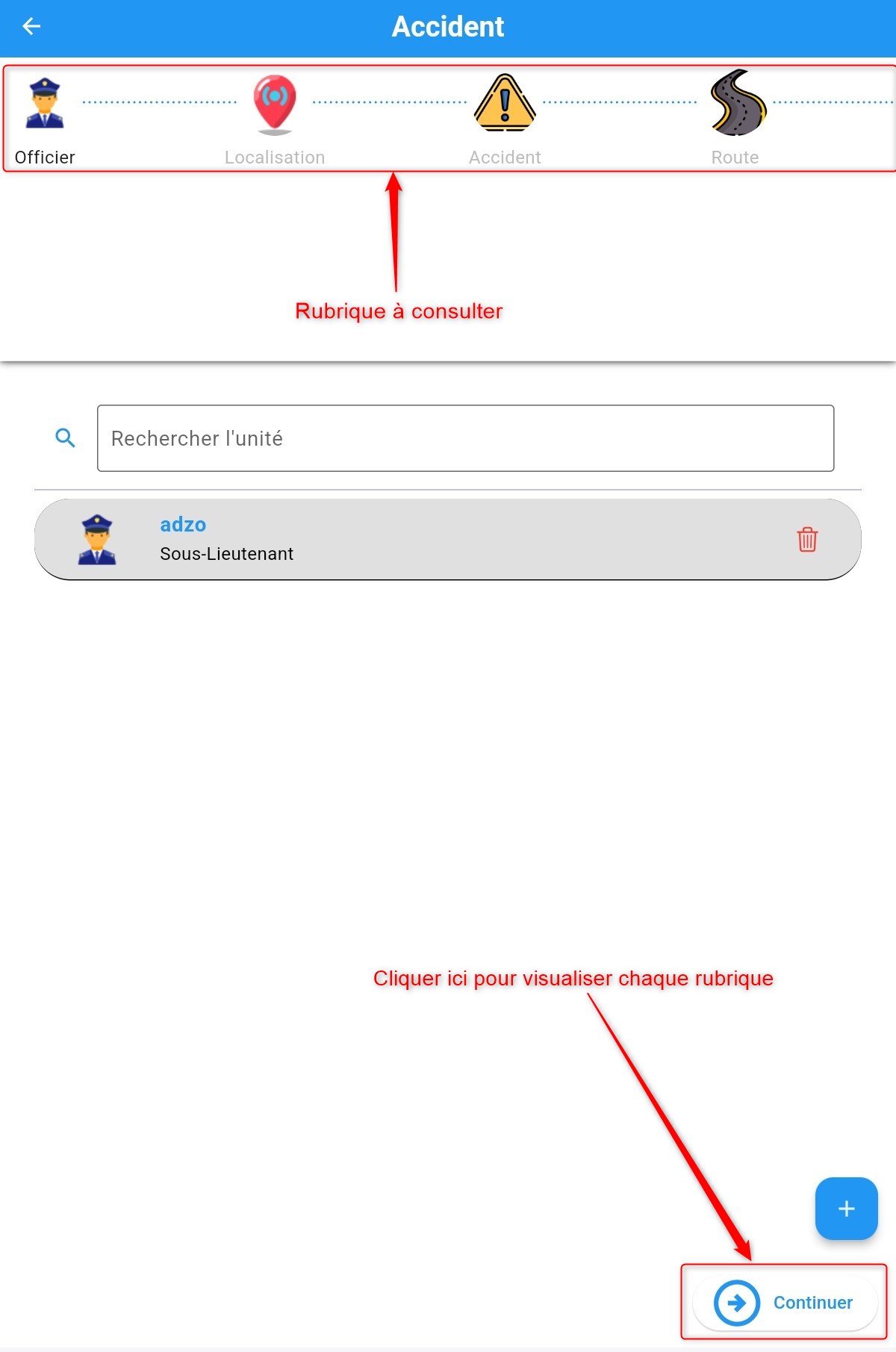
Viewing accident declaration details
Click Continue to review all eight sections.
PDF Report
To obtain the PDF report of a declaration, click Generate Report in the list of available actions for an accident declaration. Once you click Generate Report, as shown here, the following interface will appear:
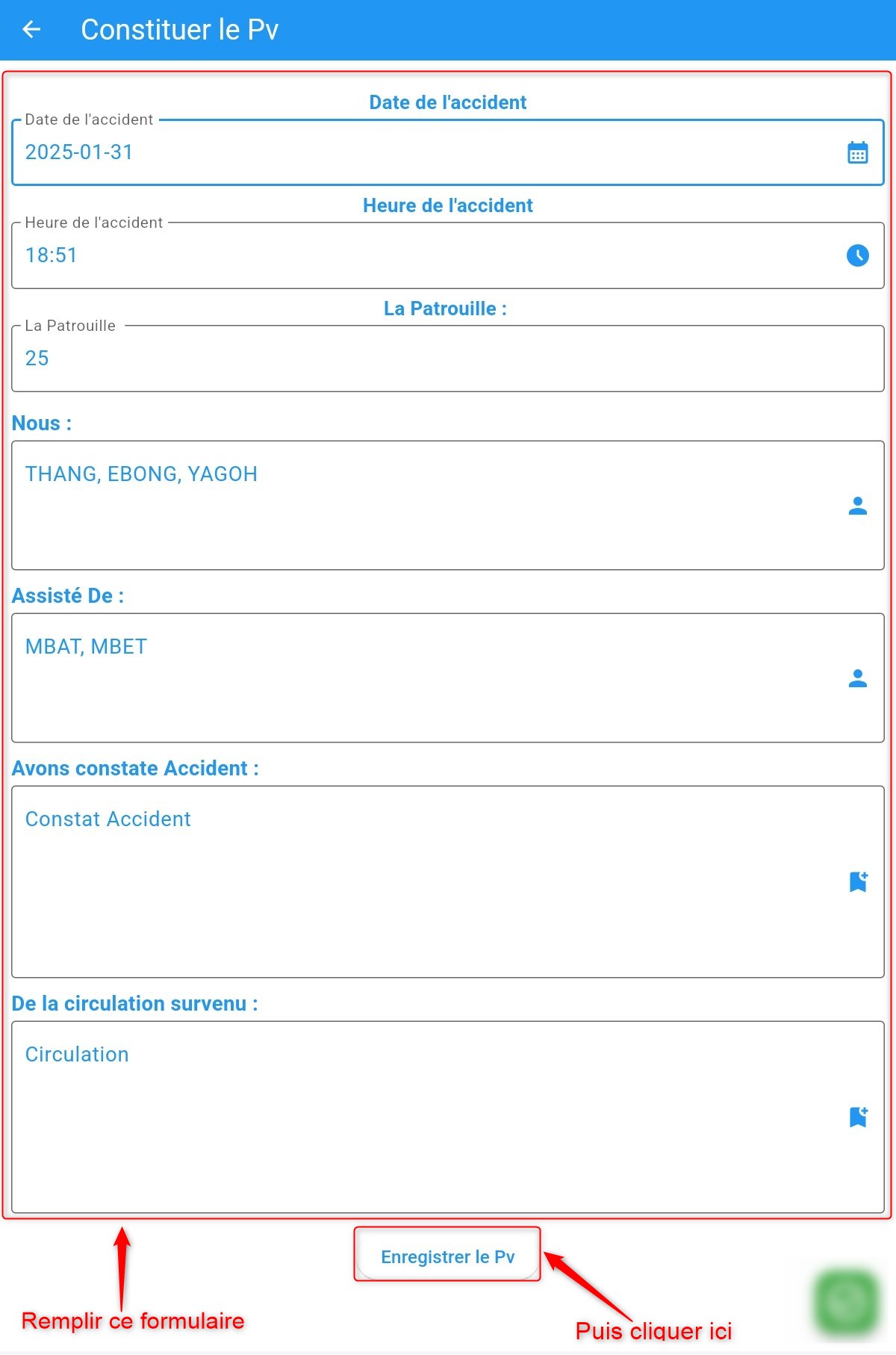
Generating the report
Editing the Declaration
By clicking Edit, you can make changes to the declaration. A page will be displayed showing the different sections filled in during the accident declaration process. Click on the tab you wish to modify, update the details, and click Save. Once you click Edit, as shown here, the following interface will appear:
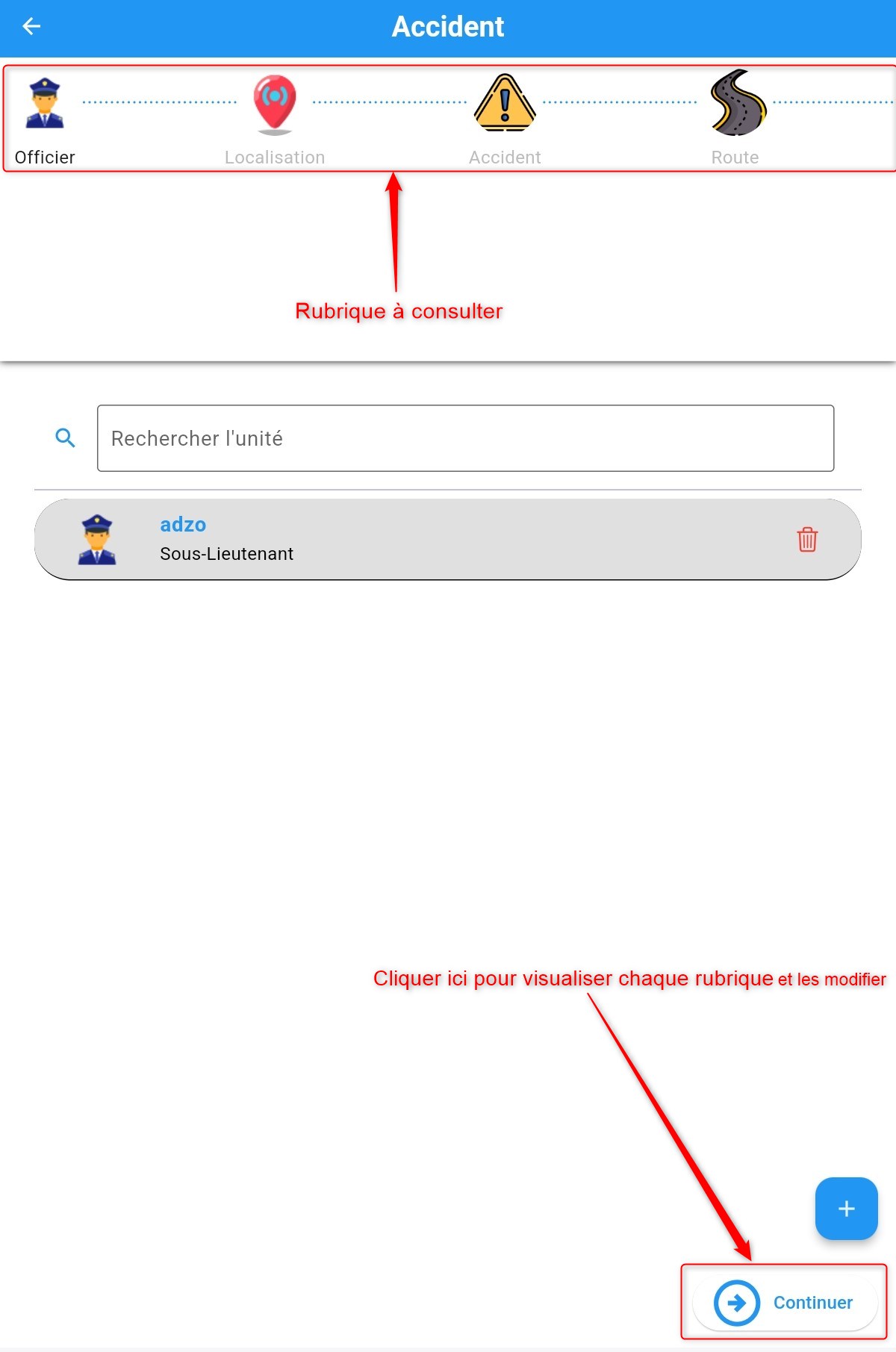
Editing the declaration
Click Continue to edit the eight sections as needed.
Signing the Report
To sign the report, click Sign in the list of available actions for an accident declaration. Once you click Sign, as shown here, the following window will appear:
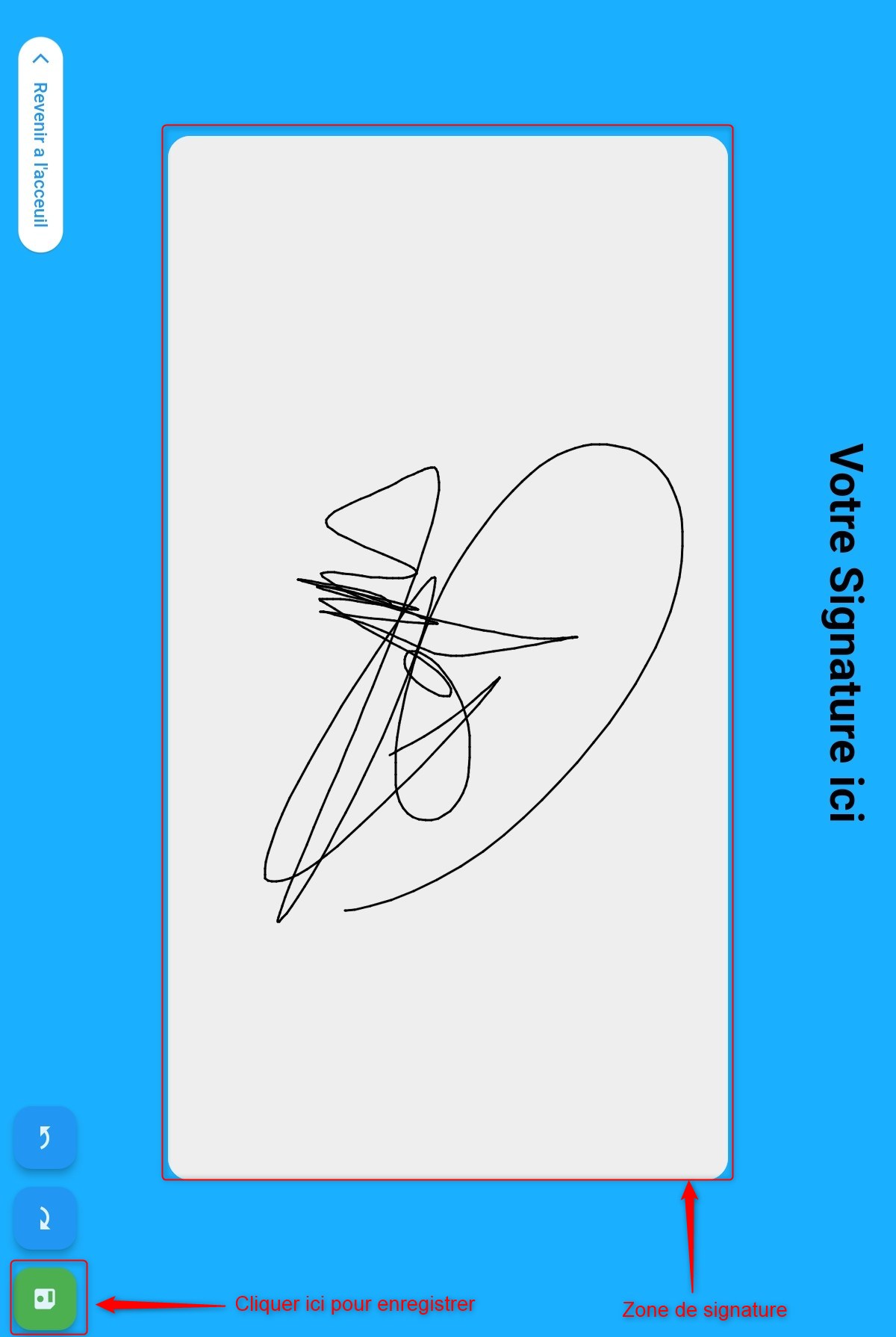
Signature added
Sign and save the signature by clicking the Save button, as shown in the image above.
Adding a Deposition
To add a deposition to a declaration, click Deposition in the list of available actions for an accident declaration. Once you click Deposition, as shown here, the following window will appear:
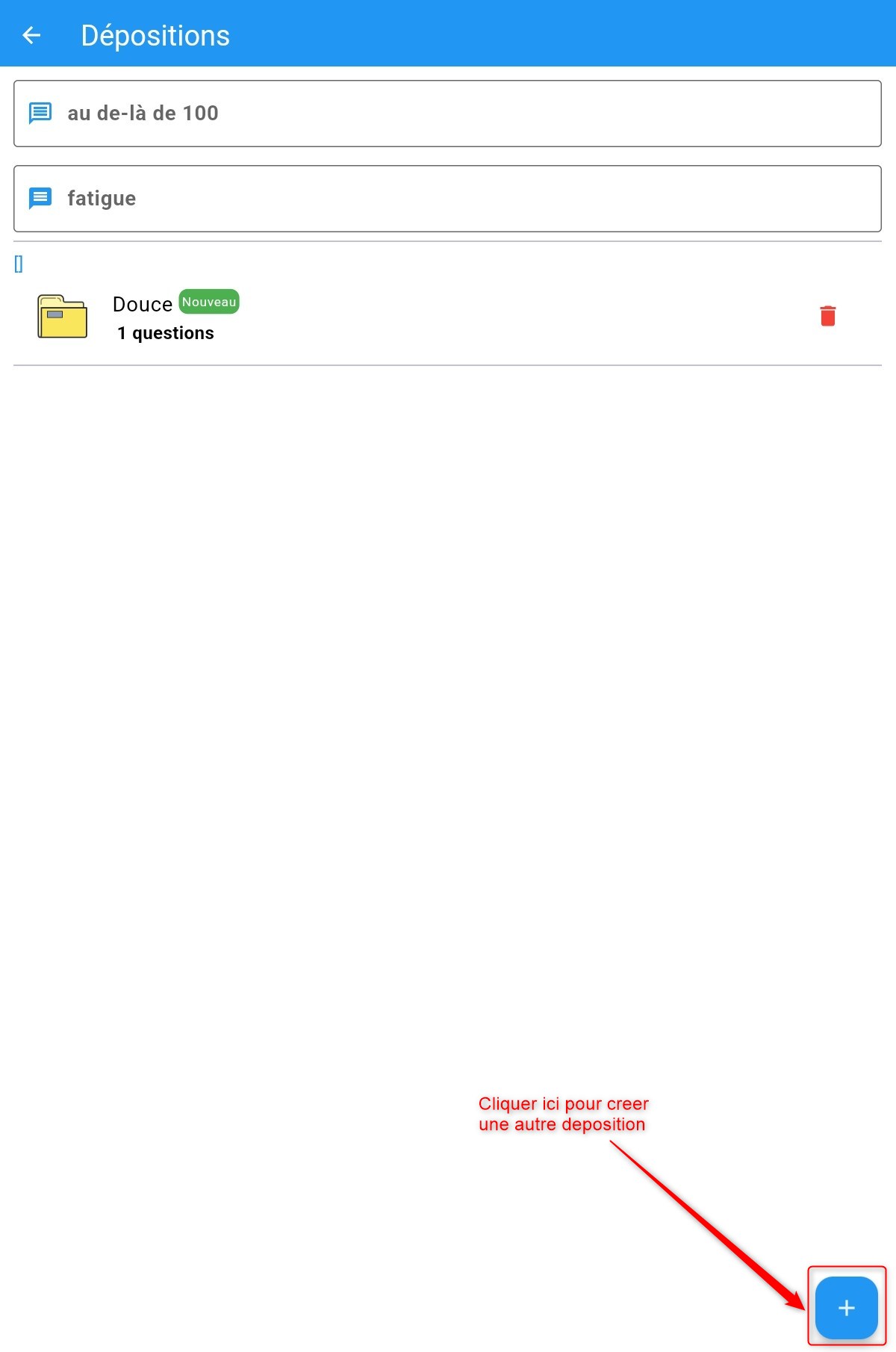
Adding a deposition
After clicking the Create Deposition button, you will be directed to the following section: Learn more